Feature
Remove silence from your video in one click
Updated
In short
The fastest way to remove silence from a video is a tool that detects pauses in your voice and cuts them for you. In Clarcut, it's a single button with three levels: Light (only cuts pauses longer than one second), Normal and Strong. It cuts video and audio together, runs on your computer, and it's included in the free version. Afterward, double-check any part where you were showing something without talking.
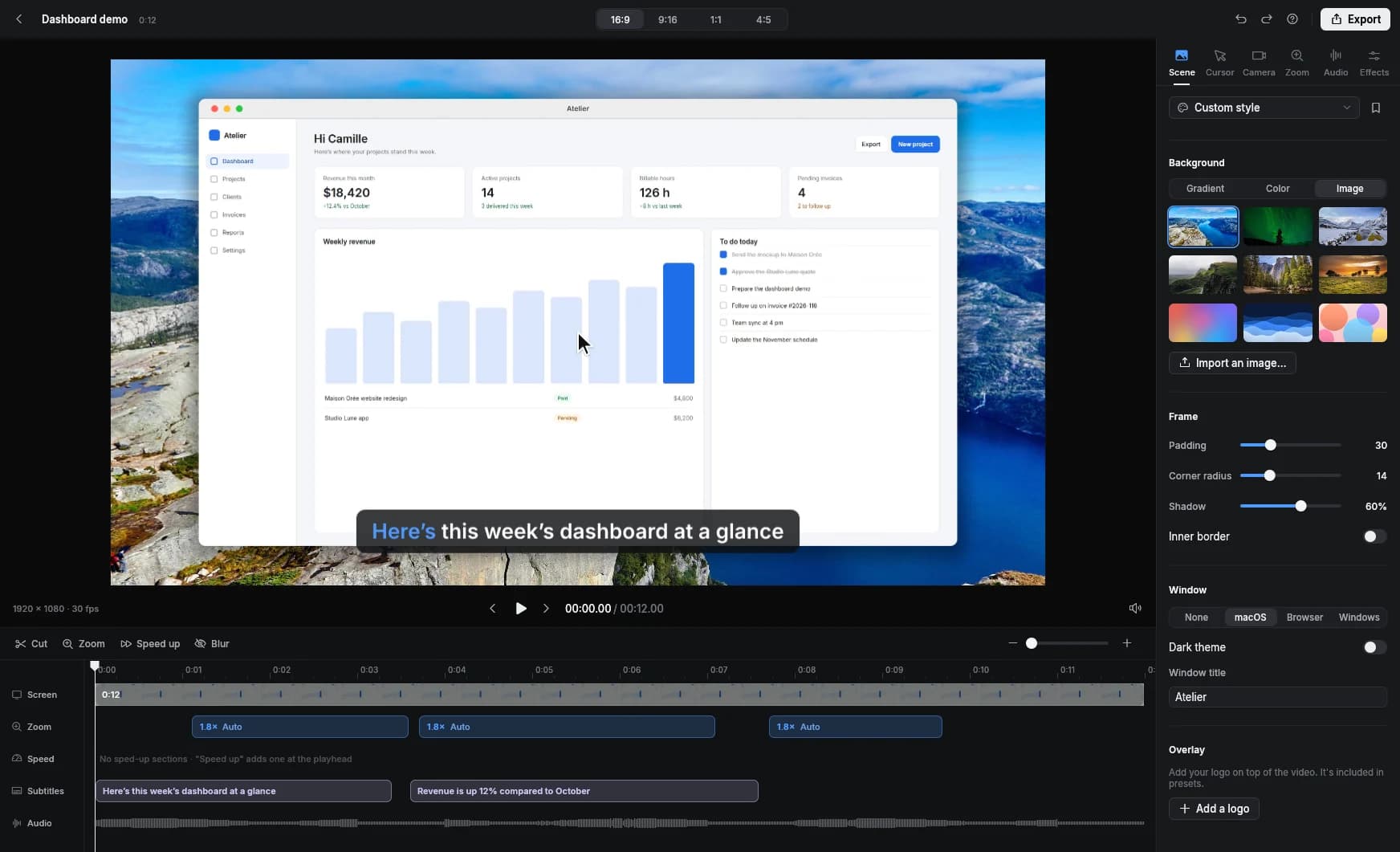
Why cut the silences in a screen recording
In a screen recording, you're talking and clicking at the same time. That means dead air while you look for a menu, “hang on…” while a page loads, long breaths before each sentence. Live, nobody notices. On video, it all reads as slow, and viewers drop off.
Cutting those gaps by hand takes forever: find each pause on the waveform, make two cuts, delete, repeat. A ten-minute video can easily have dozens of them. Automatic silence removal does it in seconds, and you still get the final say.
How silence removal works in Clarcut
Clarcut analyzes your voice track, finds the stretches where you aren't speaking, and removes them from the video, picture included. Zooms, cursor and webcam stay consistent because everything is recalculated after the cut. The analysis happens on your computer: nothing is uploaded.
The button offers three levels. The stronger the level, the more short pauses get cut and the tighter the pacing.
| Level | What gets cut | Result | Best for |
|---|---|---|---|
| Light | Only pauses longer than one second | Natural, breaths stay in | Detailed tutorials, training, calm explanations |
| Normal | Long pauses and some shorter ones | Snappier, still comfortable | Product demos, replies to customers |
| Strong | Nearly every gap between sentences | Fast-paced, back to back | Short social media videos |
How to remove silences, step by step
- 1
Record with your mic on
Detection is based on your voice. A mic close to your mouth gives cleaner detection.
- 2
Remove background noise first
A loud fan or keyboard can be mistaken for speech. Background noise removal makes detection more reliable.
- 3
Click “Remove silences”
Pick Light for a first pass. The cuts show up on the timeline.
- 4
Watch the whole video
Pay special attention to moments where you show something without speaking: a silent action may have been cut.
- 5
Fine-tune
Undo if it feels too tight, or add your own cuts with the S key on the timeline.
- 6
Speed up instead of cutting when the action matters
Long typing or loading screens look better sped up. Use “speed up when I type” or a manual speed-up section.
Cut or speed up: the right fix for each gap
Not all silences are equal. A gap where nothing happens on screen can go. A gap where you're filling out a form, a progress bar is moving or you're dragging something around shows something useful: cutting it would make the picture jump with no explanation.
| Situation | Best option in Clarcut | Why |
|---|---|---|
| You're searching for words, nothing moves | Remove silences | Viewers don't miss anything. |
| You're typing a long text | Speed up when I type | Viewers see the typing without waiting; audio is muted to avoid chipmunk voice. |
| A page or export is loading | Manual speed-up | Viewers understand there was a wait. |
| You're demonstrating with the mouse, silently | Keep it, or speed up slightly | The action is the information. |
| You flubbed a sentence and said it again | Manual cut (S key) | Detection keeps both takes since you're talking in both. |
Tips for a natural result
- Leave a short breath between ideas: with Light, it stays in and the video keeps a human rhythm.
- Avoid Strong on long training videos: speech with zero pauses gets exhausting fast.
- Finish your sentence before you click: cuts then fall between actions instead of mid-movement.
- If you're adding background music, add it after removing silences: detection works on your voice.
- Always check the ending: the silence before you stop recording often gets cut, so make sure your last action is still visible.
What silence removal doesn't do
Clarcut cuts silences, not filler words. “Um,” “uh” and “like” stay in the video because they're speech. If you use a lot of them, cut them manually with the S key, or practice pausing silently instead: a silent pause gets removed automatically.
Tools like Descript can detect filler words from a transcript. If that's your main need, they're a better fit than Clarcut on that point.
Other ways to remove silence from a video
| Method | Cuts video with audio | Automatic | Limits |
|---|---|---|---|
| Manual cuts in an editor (Clipchamp, iMovie, DaVinci Resolve) | Slow: you have to find every pause on the waveform. | ||
| Audacity's Truncate Silence effect | Audio only: on its own, it breaks a screen recording because the picture no longer matches. | ||
| Transcript-based editor (e.g. Descript) | A full tool to learn, built more for talking-head video than screen recordings. | ||
| Clarcut | Yes, 3 levels | Doesn't remove “um”; double-check silent demonstrations. |
If you already edit in DaVinci Resolve or Premiere Pro with multiple tracks and effects, stick with your editor: Clarcut isn't a multitrack editing suite. It's built to get you a clean screen recording fast, without going through all that.
Frequently asked questions
How do I automatically remove dead air from a video?
Use a tool that detects pauses in your voice and cuts the video at the same time. In Clarcut, click “Remove silences,” choose Light, Normal or Strong, then watch the video to check any parts without speech.
What exactly does the Light level cut?
Light only cuts pauses longer than one second. Breaths and short gaps between sentences stay in, which keeps the pacing natural.
Can I undo silence removal?
Yes. You can undo it, rerun it at a lighter level, or add and remove cuts by hand on the timeline.
Does Clarcut remove “um” and “uh”?
No. Clarcut removes silences, not filler words. Cut filler words by hand with the S key, or use a transcript-based editing tool.
Is silence removal free?
Yes. It's part of the automatic editing included in Clarcut's free version, along with zooms, the smooth cursor and background noise removal.
Are my videos uploaded for analysis?
No. Silence detection runs on your computer. Nothing is uploaded unless you create a share link yourself.