Mac
A screen recorder for Mac that edits the video for you
Updated
In short
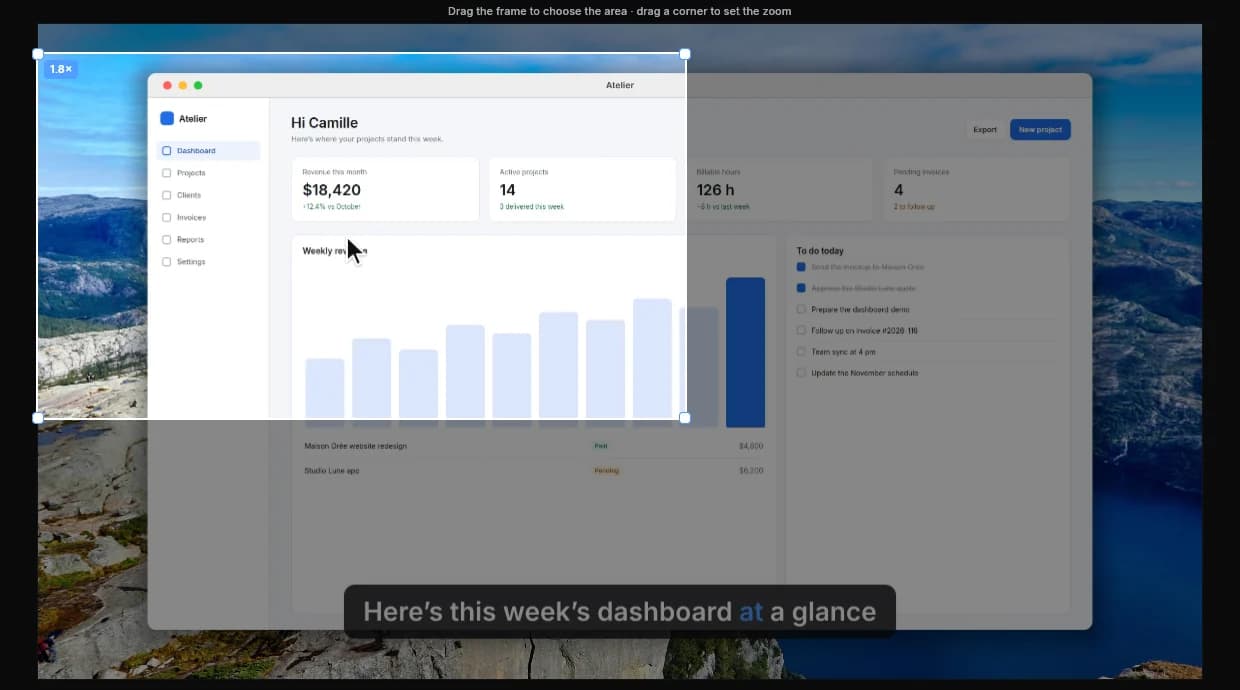
Clarcut is a screen recorder for Apple silicon Macs (M1 and later) running macOS 13 Ventura or newer. It records your screen, a window or an area with your webcam, mic and Mac audio, then edits the video automatically: zooms on your clicks, a smoothed cursor, cleaned-up audio, a polished background. The first time you launch it, macOS asks you to allow screen recording, microphone and camera access. The free version has no time limit; Clarcut Pro is a one-time $44.
System requirements
To check which chip your Mac has, open the Apple menu › About This Mac: the “Chip” line shows Apple M1, M2, M3 or later. If it says “Processor” with an Intel model, Clarcut won't run on that Mac.
| Clarcut on Mac | |
|---|---|
| Processor | Apple silicon: M1 and later |
| Intel Macs | Not supported |
| OS | macOS 13 Ventura or later |
| Account | No account needed for the free version |
| App | Native and signed; not a browser extension |
| License | One Pro license covers Mac and Windows, on up to 3 computers |
The permissions to grant on Mac
macOS protects your screen, microphone and camera. The first time you record, it asks for permission for each one. If you clicked Don't Allow by mistake, or nothing is being recorded, check these settings.
- 1
Open System Settings › Privacy & Security
From the Apple menu.
- 2
Screen Recording
Turn on Clarcut in the list (“Screen & System Audio Recording” on recent macOS versions). Without it, your video will be black or show only your wallpaper.
- 3
Microphone
Turn on Clarcut to record your voice.
- 4
Camera
Turn on Clarcut to add your webcam.
- 5
Quit and reopen Clarcut
macOS often only applies the screen recording permission after the app restarts.
What Cmd + Shift + 5 and QuickTime can't do
The macOS screenshot toolbar (Cmd + Shift + 5) and QuickTime Player record your screen for free, with your mic. QuickTime also lets you trim the start and end. For a video you're sharing, a lot is missing.
| Cmd + Shift + 5 | QuickTime Player | Clarcut | |
|---|---|---|---|
| Full screen or an area | Yes, plus a single window | ||
| Mac audio (apps, videos) | |||
| Webcam overlay | |||
| Auto zoom on clicks | |||
| Smooth, resizable cursor after recording | |||
| Background noise and silence removal | |||
| Background, frame, logo | |||
| Vertical and square formats | |||
| Trim start and end | Yes, plus cuts anywhere | ||
| Automatic captions | Yes (Pro) |
iMovie, free on Mac, lets you edit the video by hand afterward. It's a good option if you enjoy editing; Clarcut handles zooms, the cursor and audio automatically.
Your first video on Mac, step by step
- 1
Download Clarcut and move it to Applications
From the Download page. No account required.
- 2
Grant permissions
Screen recording, microphone and camera, then reopen the app.
- 3
Choose what to record
Full screen, a window or an area, with your webcam, mic and Mac audio as needed.
- 4
Record
The 3-second countdown is optional. Talk naturally and pause briefly after important clicks.
- 5
Tweak in the editor
Your video opens already edited. Cut with S, add a zoom with Z, change the background or format.
- 6
Export or share
MP4 or GIF, in 16:9, 9:16, 1:1 or 4:5, or a share link with Clarcut Plus.
Every Clarcut feature on Mac
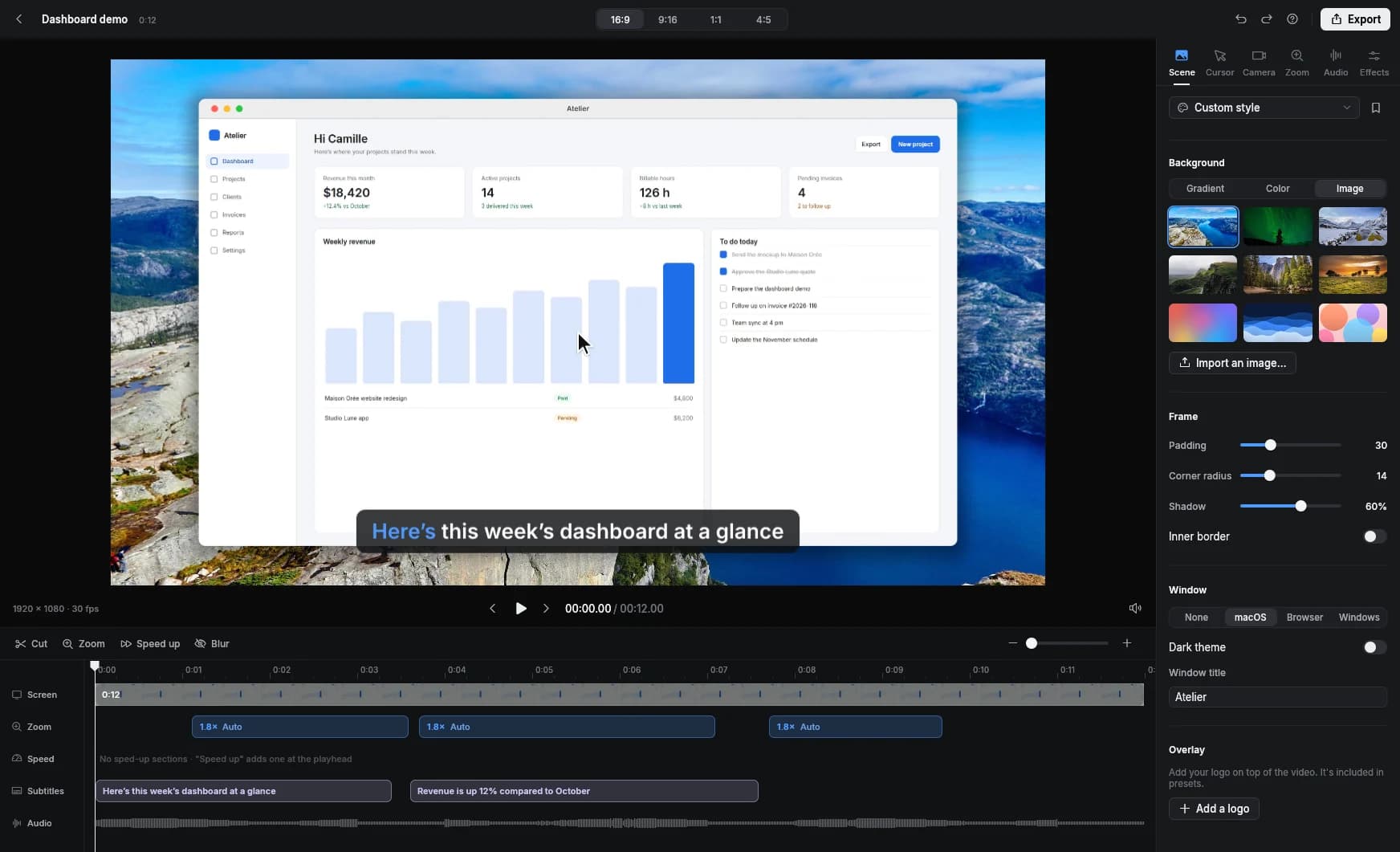
| Feature | Free | Pro |
|---|---|---|
| Record screen, window, area, multiple displays | ||
| Webcam, mic, Mac audio | ||
| Auto zoom on clicks, editable | ||
| Smooth cursor, styles, size, click ripple | ||
| Background, frame, macOS mock window, logo, presets | ||
| Smart camera and layouts | ||
| Background noise and silence removal | ||
| Speed up when I type, manual speed-ups | ||
| Hide or blur an area | ||
| 16:9, 9:16, 1:1, 4:5 formats; MP4 or GIF | ||
| Export | 720p or 1080p, 30 fps, small watermark | Up to 4K and 1440p, 60 fps, no watermark |
| Automatic captions (and .srt export) | ||
| Automatic external mic sync |
Tips for recording on a Mac
- Turn on a Focus mode (Do Not Disturb) from Control Center to block notifications.
- On a Retina display, the interface can look small once the video is scaled down: record a window instead of the whole screen, or enlarge the content.
- Hide the Dock and tidy your desktop if you're recording the full screen.
- The built-in MacBook mic is decent but picks up the keyboard: background noise removal helps, an external mic helps even more.
- The macOS mock window style makes a web app demo blend in with the rest of your Mac.
Privacy
Editing and caption transcription happen on your Mac, with nothing uploaded unless you create a share link. The app sends anonymous usage stats, which you can turn off in settings.
When another tool is a better fit
- Your Mac has an Intel processor: Clarcut won't run on it. OBS Studio or QuickTime are still options.
- You only use a Mac and already pay for Screen Studio: it does comparable work.
- You need full editing with titles and transitions: Final Cut Pro, DaVinci Resolve, or iMovie for simple projects.
- You want to live stream: OBS Studio.
Frequently asked questions
Does Clarcut work on Intel Macs?
No. Clarcut only runs on Apple silicon Macs (M1 and later) with macOS 13 Ventura or newer.
How do I record my Mac's screen with internal audio?
The screenshot toolbar and QuickTime only record your mic. Clarcut records your Mac's audio along with your mic, with no extra software. Just make sure screen and system audio recording is allowed in System Settings.
Why is my screen recording black on Mac?
It's almost always a missing screen recording permission. Turn on Clarcut in System Settings › Privacy & Security › Screen Recording, then reopen the app.
Is Clarcut safe to install on a Mac?
The app is signed. Editing and transcription happen on your Mac, and nothing is uploaded unless you create a share link.
Can I use my license on both my Mac and my PC?
Yes. The same Clarcut Pro license works on Mac and Windows, on up to 3 computers total.
Is Clarcut a Screen Studio alternative?
Yes, built on the same idea of automatic zooms and a smoothed cursor. Clarcut is a one-time purchase ($44 for Pro) and also runs on Windows, while Screen Studio is a Mac-only subscription.