Windows
A screen recorder for Windows that edits the video for you
Updated
In short
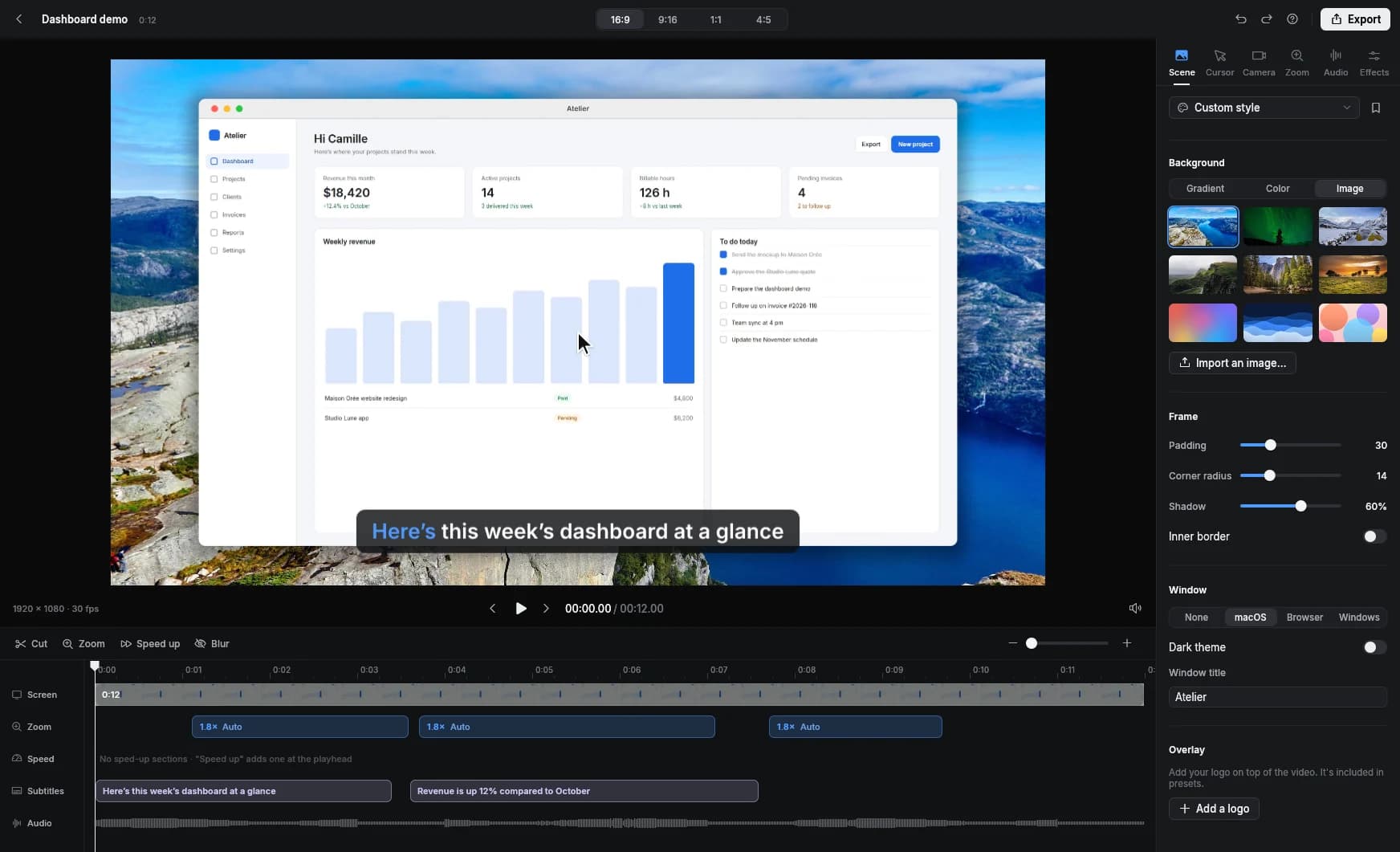
Clarcut is a screen recorder for Windows 10 and 11 (64-bit) that installs without admin rights. It records your full screen, a window or an area, with your webcam, mic and system audio, then edits the video automatically: zooms on your clicks, a smoothed cursor, background noise removed, a polished background. The free version has no time limit (1080p export with a small watermark); Clarcut Pro is a one-time $44.
System requirements and installation
Installing without admin rights is handy on a work PC you don't fully control: you can record a demo or a training video without filing an IT ticket. Do check your company's policy on installing software, though.
| Clarcut on Windows | |
|---|---|
| OS | Windows 10 or Windows 11, 64-bit |
| Admin rights | Not required to install |
| Account | No account needed for the free version |
| App type | Native desktop app, not a browser extension |
| Multiple monitors | |
| License | One Pro license covers Windows and Mac, on up to 3 computers |
What Windows' built-in tools can't do
Windows comes with two free tools: Xbox Game Bar (Win + Alt + R), which records one app at a time, and Windows 11's Snipping Tool, which has a video mode. They're fine for a quick capture. For a video someone else will watch, their limits show up fast.
| Xbox Game Bar | Snipping Tool | Clarcut | |
|---|---|---|---|
| Record the desktop and File Explorer | |||
| Pick a window or area | One app | An area | Screen, window or area |
| Webcam overlay | |||
| Auto zoom on clicks | |||
| Smooth, resizable cursor after recording | |||
| Background noise and silence removal | |||
| Background, frame, logo | |||
| Vertical and square formats | |||
| Automatic captions | Yes (Pro) |
Clipchamp, the video editor that ships with Windows 11, can also record your screen and webcam, then let you edit by hand on a timeline. It's a good free option if you enjoy editing; Clarcut does that work automatically.
Your first video on Windows, step by step
- 1
Download and install Clarcut
From the Download page. No account or admin rights needed.
- 2
Choose what to record
Full screen (any monitor if you have several), a window or an area. Turn on the webcam, mic and system audio as needed.
- 3
Start recording
Use the button or the global shortcut Ctrl + Shift + R, which works even when Clarcut is in the background. The 3-second countdown is optional.
- 4
Stop with Ctrl + Shift + R
The editor opens with your video already edited: zooms, cursor, background.
- 5
Tweak if needed
Cut with S, add a zoom with Z, remove silences, blur an area.
- 6
Export or share
MP4 or GIF, in 16:9, 9:16, 1:1 or 4:5. Or a share link with Clarcut Plus.
Every Clarcut feature on Windows
| Feature | Free | Pro |
|---|---|---|
| Record screen, window, area, multiple monitors | ||
| Webcam, mic, system audio | ||
| Auto zoom on clicks, editable | ||
| Smooth cursor, styles, size, click ripple | ||
| Background, frame, mock window, logo, presets | ||
| Smart camera and layouts | ||
| Background noise and silence removal | ||
| Speed up when I type, manual speed-ups | ||
| Hide or blur an area | ||
| On-screen keyboard shortcuts | ||
| 16:9, 9:16, 1:1, 4:5 formats; MP4 or GIF | ||
| Export | 720p or 1080p, 30 fps, small watermark | Up to 4K and 1440p, 60 fps, no watermark |
| Automatic captions (and .srt export) | ||
| Automatic external mic sync |
Tips for recording on a Windows PC
- Turn on Do not disturb before recording so a Teams or Outlook notification doesn't pop up in your video.
- On a 4K monitor at 100% scaling, the interface looks tiny on video: switch to 150% or record a smaller window.
- Record a window instead of the full screen: the taskbar and clock stay out of frame.
- With multiple monitors, keep your notes on the screen you're not recording.
- If your laptop heats up and the fan kicks in, background noise removal handles it, but a headset is still the safer bet.
Privacy
Editing and caption transcription happen on your PC. Your videos aren't uploaded unless you create a share link with Clarcut Plus. The app sends anonymous usage stats, which you can turn off in settings.
When another tool is a better fit
- You're live streaming on Twitch or YouTube: OBS Studio is built for that, Clarcut isn't.
- You mostly record gameplay: Xbox Game Bar or your graphics card's software is enough.
- You need advanced multitrack editing with animated titles and transitions: DaVinci Resolve, Premiere Pro or Camtasia go further.
- You're on Linux or want something that runs in the browser with nothing to install: Clarcut has no Linux or web version.
Frequently asked questions
What's the best free screen recorder for Windows?
It depends on what you need. For a quick capture, Windows 11's Snipping Tool is enough. For live streaming, OBS Studio. For a polished demo or tutorial with no editing, Clarcut is free with no time limit, exporting at 1080p with a small watermark.
Does Clarcut work on Windows 10?
Yes, on 64-bit Windows 10 and Windows 11. Older versions of Windows aren't supported.
Can I install Clarcut without admin rights?
Yes, installation doesn't require admin rights, which is handy on a work computer.
How do I record my screen with audio on Windows?
In Clarcut, turn on your mic and system audio before recording. You can then remove background noise from the mic in the editor.
What's the shortcut to start recording?
Ctrl + Shift + R starts and stops recording in Clarcut, even when the app is in the background.
Does the license work on Mac too?
Yes. The same Clarcut Pro license works on Windows and Mac, on up to 3 computers total.
Can Clarcut record with multiple monitors?
Yes, Clarcut supports multi-monitor setups: pick the screen to record, or a window or area on any of them.