Feature
Turn your screen recording into a vertical video for TikTok
Updated
In short
Making a vertical video from your screen takes more than center-cropping a 16:9 recording: you'd lose half the action and the text would be tiny. You need framing that follows what you're doing. In Clarcut, you pick 9:16 (or 1:1, 4:5) in the editor and the framing adapts, with zooms on your clicks, your webcam and, with Pro, social-style captions. One take works for every format.
The problem with screen recordings in vertical
Computer screens are horizontal; phones are vertical. Drop a 16:9 recording into a 9:16 video as is, and it becomes a thin strip across the middle with big empty areas above and below. The interface text ends up a few pixels tall: unreadable.
Center-crop to fill the frame, and you lose the sides: the menu on the left, the button in the top right, anything off-center. The fix is tight framing that moves with the action, like a camera operator following your mouse.
How Clarcut adapts a screen recording to vertical
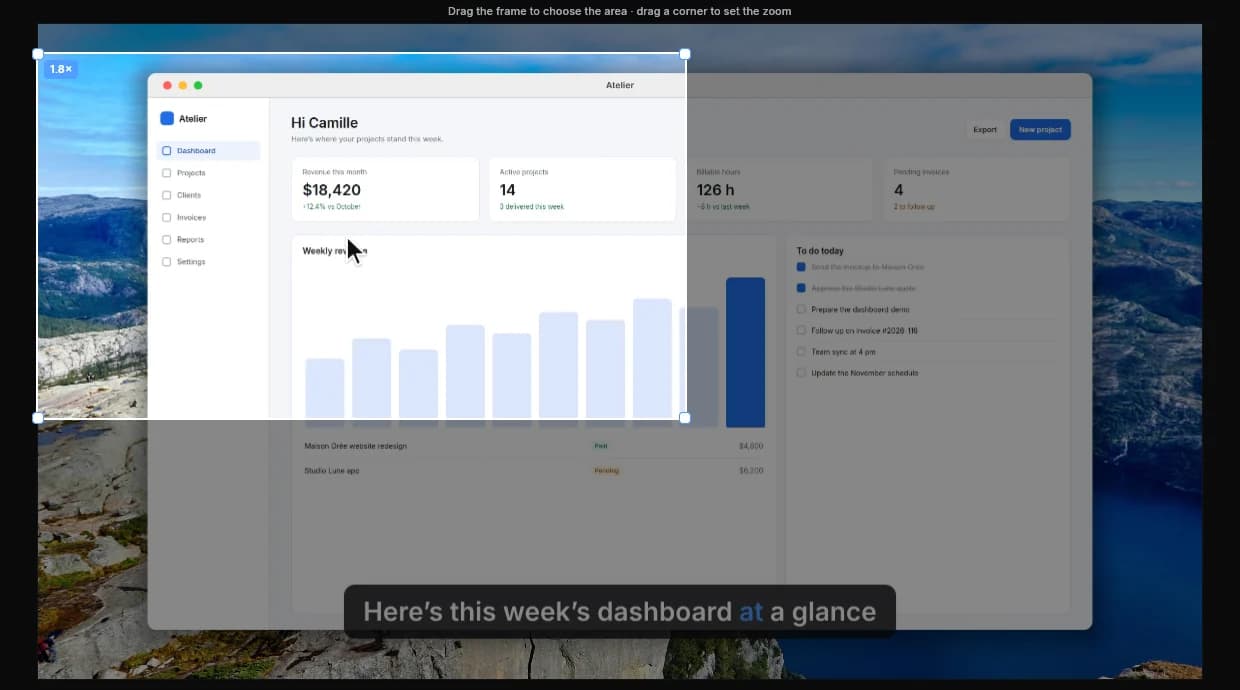
Clarcut knows where your mouse and clicks were throughout the recording. When you switch to 9:16, the automatic zooms recenter on the action and the framing follows your cursor. You can adjust every zoom by hand: drag the frame to pick the area, pull a corner to change the zoom level, or turn on “follow cursor.”
The background and frame adapt to the new format too, and so does the webcam. No need to re-record: the same take gives you a 16:9 version for YouTube and a vertical one for TikTok.
Which format for which platform
| Format | Size at 1080p | Where to post it |
|---|---|---|
| 9:16 (vertical) | 1080 × 1920 | TikTok, Instagram Reels, YouTube Shorts, Stories |
| 4:5 | 1080 × 1350 | Instagram feed, LinkedIn, Facebook |
| 1:1 (square) | 1080 × 1080 | LinkedIn, Instagram feed, ads |
| 16:9 (horizontal) | 1920 × 1080 | YouTube, your website, help center, online courses |
How to make your vertical video, step by step
- 1
Set up your screen for mobile
Make the interface bigger (browser zoom at 125% or 150%) and record a window rather than the full screen: everything will be larger once reframed.
- 2
Record with your webcam if you want to be on camera
On social, a face at the start helps hold attention.
- 3
Choose 9:16 in the editor
The framing is recalculated. Check each zoom on the timeline.
- 4
Adjust the zooms
Drag the frame onto the useful area, pull a corner to zoom in or out, or add a zoom with the Z key. “Recalculate zooms” keeps the ones you added by hand.
- 5
Cut silences and speed up typing
Pacing matters on social: Normal or Strong works well for short videos.
- 6
Add captions (Pro)
The “social” or “karaoke” style, word by word, helps people watching with the sound off.
- 7
Export as MP4
1080p at 30 fps for free (with a watermark), up to 4K and 60 fps with Clarcut Pro.
Free or Pro for social media
| Free | Clarcut Pro | |
|---|---|---|
| 9:16, 1:1, 4:5 and 16:9 formats | ||
| Framing that follows the action, zooms | ||
| Webcam, background, smooth cursor | ||
| Silence and noise removal | ||
| Export | 1080p, 30 fps, small watermark | Up to 4K, 60 fps, no watermark |
| Styled automatic captions |
One take, several formats
The most efficient approach is to plan for multiple formats while you record. Keep the action in a fairly compact area of the screen, avoid constantly clicking at opposite ends of the interface, and pause after each important click so the vertical framing has time to follow.
Then export the 16:9 version first, switch to 9:16 and go back over each zoom: in vertical, some deserve to be tighter and others can go. Zooms you added by hand are kept if you recalculate the automatic ones. Finally, trim the vertical version if needed: on social, a short video showing one tip often does better than the full walkthrough.
Tips for vertical videos that perform
- Show the result in the first two seconds, then explain how to get there: on TikTok, people decide fast whether to stay.
- Keep important content in the center: along the bottom and right side, the app's buttons and caption cover the video.
- Zoom tighter than you would in 16:9: on a phone, one big button beats a whole tiny screen.
- One idea per video. If your tutorial has five steps, make it a series.
- Add captions: lots of people scroll with the sound off.
- Think about the first frame: it's often used as the cover, so make it count.
Other ways to make a vertical video
CapCut and Clipchamp let you choose a 9:16 format and reframe a video by hand. The result can be great, but you have to move the frame yourself throughout the video to follow the action, which takes a while with a screen recording. iMovie on Mac is built primarily for horizontal video.
If your vertical video is mostly you on camera with effects, transitions and trending audio, a mobile editor like CapCut is a better fit than Clarcut. Clarcut is built for videos where the screen is the star: tool demos, software tips, app walkthroughs.
Frequently asked questions
How do I turn a screen recording into a TikTok video?
Choose 9:16 in Clarcut: the framing follows your clicks and cursor instead of center-cropping. Adjust the zooms if needed, then export as MP4.
Do I need to record twice for vertical and horizontal versions?
No. The same take can be exported in 16:9, 9:16, 1:1 and 4:5: just switch the format in the editor and check the framing.
How do I avoid black bars in vertical?
Use framing that zooms in on the action instead of shrinking the whole screen. In Clarcut, the background fills the space around the picture when the screen doesn't take up the full height.
What resolution should a TikTok video be?
The standard is 1080 × 1920 pixels in 9:16. Clarcut's free version exports at 1080p and 30 fps with a small watermark; Clarcut Pro goes up to 4K and 60 fps.
Can I add captions to vertical videos?
Yes, with Clarcut Pro: transcription on your computer, word-by-word display and karaoke, classic or social styles, positioned wherever you want.
Where should my webcam go in a vertical video?
A bubble near the top keeps the screen readable and avoids the app's buttons along the bottom and right. Clarcut's smart camera also moves aside when your cursor passes under it.