Use case
Make employee training videos without a studio or an editor
Updated
In short
An effective training video walks through one specific procedure in 2 to 5 minutes, in the real tool, with data that never leaves the company. Make one video per task, store them in your intranet or LMS, and update them when the tool changes. Clarcut edits and captions the video on your computer without uploading anything, which makes the confidentiality question much simpler.
What makes a good training video
Internal training has a constraint public courses don’t: the video has to stay accurate. Procedures change with every software update, forms evolve, the team adopts a new tool. So the right format is short, focused on one task and easy to redo.
The findings from Guo, Kim and Rubin’s 2014 edX study apply at work too: short videos, an informal tone and a human presence hold attention better than a recorded lecture.
- The title is the task: “Submit an expense report in the accounting tool.”
- It shows the real tool, in the version the team actually uses.
- It stays readable, with zooms on the fields to fill in and keyboard shortcuts on screen.
- It shows no confidential data (salaries, clients, passwords).
- It’s captioned, because people watch in open offices without headphones, or in a second language.
A script template for SOP videos
- 1
When to use this procedure (10 sec)
“Do this at the end of every month, before the 5th.” Your colleague knows right away if the video applies to them.
- 2
What to have ready
Logins, the file, the receipt. So nobody has to stop halfway through.
- 3
The steps, in order
One step per screen or key field. Use the exact button names as they appear.
- 4
The watch-out
The costly mistake: the field people forget, the checkbox that sends something to a client.
- 5
How to confirm it’s done
The confirmation screen, the status that changes. Then who to contact if something goes wrong.
Plan your training library
| Video | Length | Format | Where to store it |
|---|---|---|---|
| SOP (one task) | 2–5 min | 16:9, captioned | Intranet, LMS, internal wiki |
| New hire welcome | 3–6 min | 16:9, camera full frame at the start | Onboarding program |
| New tool rollout | Series of 3–6 videos, 3–5 min each | 16:9 | LMS |
| Process change | 1–2 min | 16:9 | Team email or chat, then intranet |
| Handoff | 5–15 min | 16:9 | Share link with searchable transcript |
| Quick tip | 15–45 sec | GIF or short MP4 | Internal wiki, team chat |
Put the recording date and tool version in the title or description. When the tool changes, you’ll know exactly which videos to redo.
Recording a procedure
- Use a test environment or dummy data. If you can’t, plan to blur.
- Record the tool’s window, not the whole screen, so your inbox and other files stay out of frame.
- Turn on on-screen keyboard shortcuts if the procedure uses them. People will remember them.
- Talk to the coworker you’re training as if you were sitting next to them. No need for a formal tone.
- Pause after each step. The silences get cut, and edit points are easier to find.
- Record the whole procedure, then delete mistakes with the S key instead of starting over.
What Clarcut automates
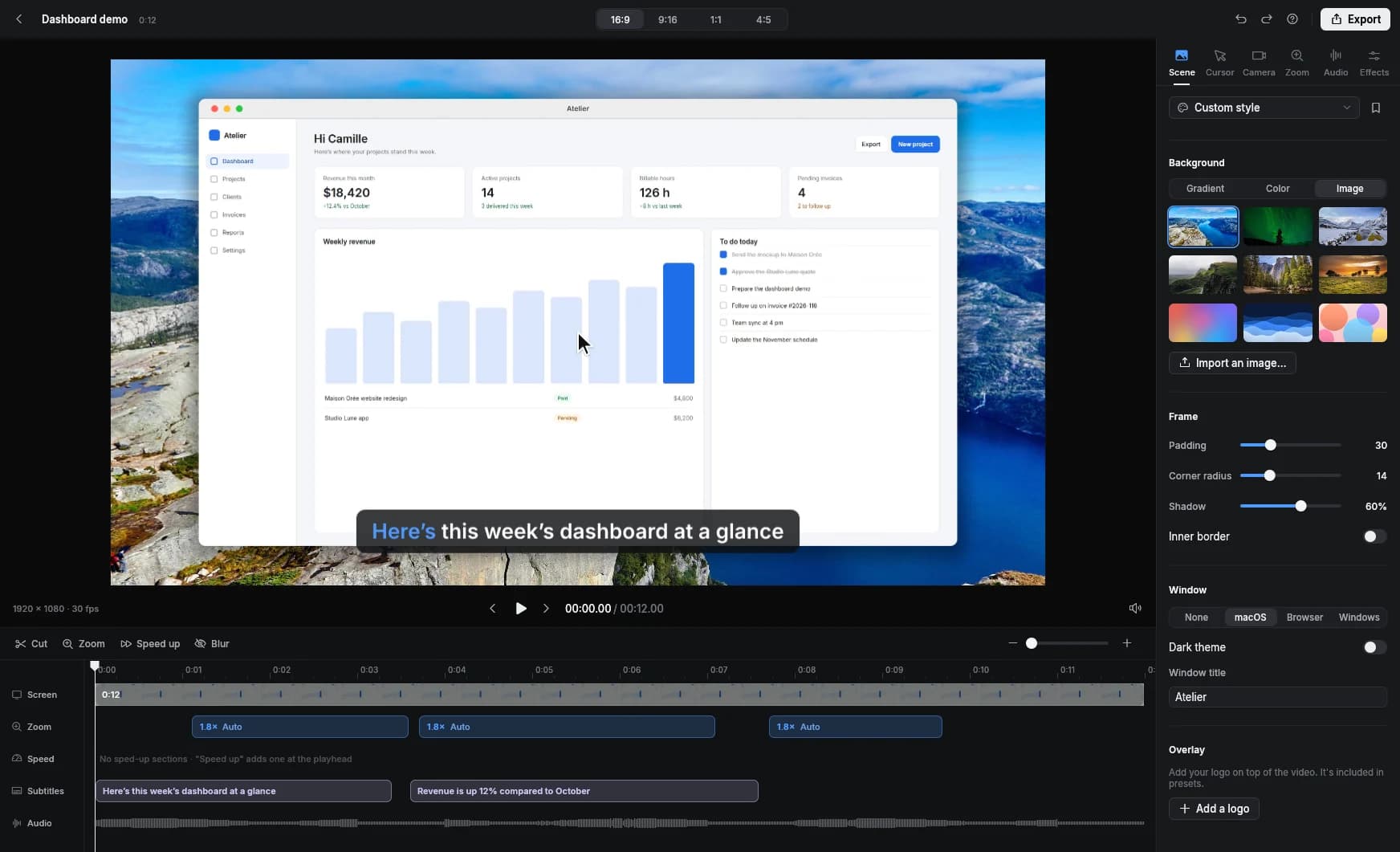
- Automatic zooms on clicks that you can adjust, or add with the Z key on an important field.
- On-screen keyboard shortcuts.
- Silence removal (Gentle or Normal) and background noise removal, processed on your computer.
- Automatic speed-up for long typing stretches, with the audio muted on those parts.
- Hide or blur an area from a given moment: a client’s name, an amount, a password.
- Smart camera, for a human presence that never gets in the way of the demo.
- A style preset with your company logo and colors, for a consistent library.
- Automatic captions with Clarcut Pro, transcribed on your computer, with .srt export: your voice and screen never leave your machine.
- Share links with Clarcut Plus for a one-off video: a page with a clickable timestamped transcript and transcript search.
Mistakes to avoid
- Recording an hour-long training call and posting it as-is.
- Letting personal or confidential data show up on screen.
- Recording with an admin account that sees menus your coworkers don’t.
- Never updating. A wrong video is worse than no video.
- Skipping captions, even though they help accessibility and make specific moments easier to find.
- Scattering videos across chat threads where nobody can find them again.
Distribution and measurement
Keep every video in one place, with one title per task and a short written description: your intranet, wiki or LMS. Most accept MP4 files, and many accept a separate .srt caption file, which Clarcut Pro exports. For accessibility, WCAG requires captions for prerecorded video with audio (success criterion 1.2.2, Level A), and they’re a good habit for coworkers working in a second language.
No need for complicated metrics: check whether repeat questions drop in your help channel, how long it takes a new hire to get up to speed on a tool, and ask teams which procedures are missing. Your LMS can track who watched what if you need it.
Clarcut’s limits in the workplace
Clarcut is a single-user tool. It has no team workspace, shared library, permissions or comments, and it doesn’t integrate with any LMS, intranet or tools like Slack or Notion. It doesn’t produce SCORM packages or quizzes. The approach that works: each trainer records and edits in Clarcut, exports an MP4 and uploads it to the training platform the company already uses, which handles access and tracking.
On licensing, a Pro license covers 3 computers for one person, so plan one license per trainer. On privacy, recording, editing and transcription all happen on the computer; only Clarcut Plus share links upload the video to Clarcut’s servers. Check with IT whether external sharing is allowed for internal content; if not, stick with MP4 export.
Frequently asked questions
How long should an employee training video be?
2 to 5 minutes per procedure. Longer training works better as a series of videos, one per task, which are easier to find and update.
How do I protect confidential data in a training video?
Record in a test environment when you can. Otherwise, Clarcut can blur an area from a specific moment on. Editing and transcription happen on your computer, with nothing uploaded.
Can I upload Clarcut videos to an LMS?
Yes, as MP4 files, plus an .srt caption file with Clarcut Pro. Clarcut has no direct integration and doesn’t create SCORM packages: you upload the video to your LMS, which handles access, quizzes and tracking.
Does Clarcut work for a team of trainers?
Yes, with one license per trainer, but there’s no team workspace or shared library. Recreating a shared style preset (background, frame, logo) on each computer keeps the look consistent.
Are captions processed offline?
Yes. With Clarcut Pro, transcription runs on your computer, with no audio or video uploaded. That’s useful for internal procedures and non-public tools.
How much does Clarcut cost for training?
Clarcut is free with watermarked 1080p exports. Clarcut Pro is $44 one-time per person, with a year of updates, on 3 computers. Share links are optional with Clarcut Plus ($9/month or $90/year).