Feature
Add a webcam overlay to your screen recordings
Updated
In short
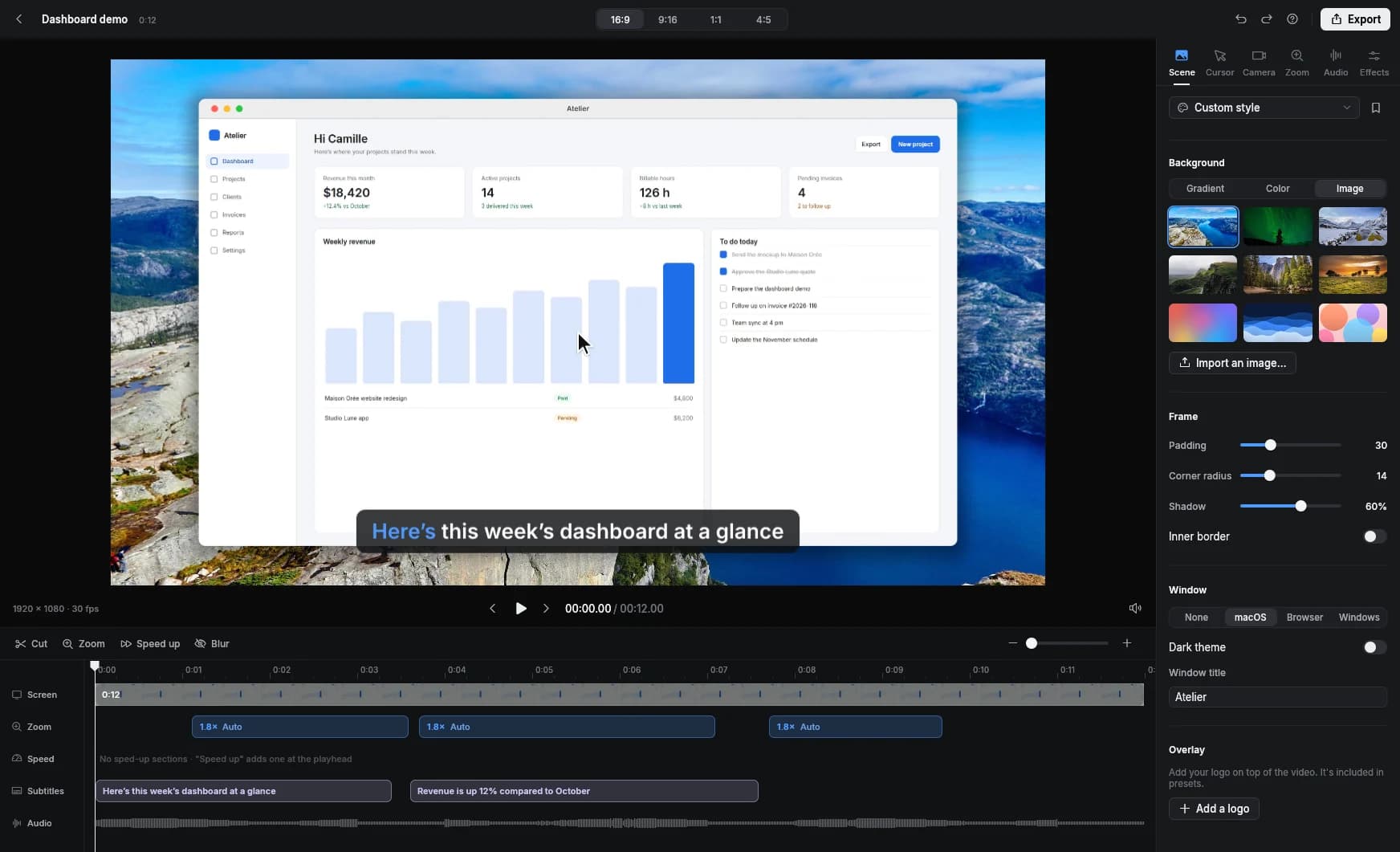
To add your webcam to a screen recording, record your screen and camera at the same time, then pick a layout: a bubble in a corner, or the camera side by side with your screen. In Clarcut, you can switch layouts at a specific moment, mirror the image, and let the “smart camera” move the bubble when your cursor passes under it or hide it while you're silent. All of it is included in the free version.
Why show your face in a screen recording
A screen recording without a face is a voice and a cursor. That works for quick documentation. But for a sales demo, a training course or a social video, seeing the person talking changes everything: people trust you more, stay longer and pick up on your tone.
The catch is that the camera often covers exactly what you're showing. A bubble in the bottom right tends to hide a button, a notification or the end of a menu. That's why being able to move it, switch layouts and have it react to your cursor matters.
Camera layouts
| Layout | What it looks like | When to use it |
|---|---|---|
| Bubble | Your face in a circle, in a corner of the screen | Demos and tutorials: the screen stays the main subject. |
| Side by side | Screen and camera share the frame | Intros, wrap-ups and explanations where your face matters as much as the screen. |
| Layout change mid-video | Switch from one layout to another at a precise moment | Start side by side to introduce yourself, then switch to a bubble for the demo. |
How to add your webcam, step by step
- 1
Turn on the camera before recording
Pick your webcam and mic in Clarcut. The 3-second countdown gives you time to look at the lens.
- 2
Record screen and camera together
Full screen, a window or an area. Both feeds are stored separately, so you can change everything in the editor.
- 3
Choose a layout in the editor
Bubble or side by side. Put the bubble in the emptiest corner of your interface.
- 4
Add a layout change if needed
Move to the right moment on the timeline and pick a different layout from that point on.
- 5
Turn on the smart camera
The bubble moves out of the way when your cursor passes under it and hides during silences, then comes back as soon as you speak.
- 6
Turn on mirroring if you look “backwards”
Most people are used to their reflection: mirroring makes the image feel more familiar.
The smart camera in practice
Two behaviors make the difference. First, the bubble moves aside when your cursor passes underneath it: if you need to click a button in the bottom right, the camera shifts instead of covering it. You don't have to think about where the bubble is while you record.
Second, the camera hides during silences and returns as soon as you start talking. When you demonstrate something without speaking, the screen gets the whole frame; when you start talking again, your face comes back. The video looks hand-edited, and you didn't lift a finger.
Getting a good webcam shot
- Put the camera at eye level: a laptop on a desk films your chin and the ceiling. Prop it up on a few books.
- Keep the light in front of you, never behind: a window at your back turns you into a silhouette.
- Look at the lens when you address the viewer and at the screen when you're working: that feels natural.
- Tidy up what's behind you. Clarcut doesn't remove or blur your webcam background.
- Keep the bubble small in detailed demos: the screen needs to stay readable.
Webcam layouts by video type
| Video type | Suggested layout | Smart camera |
|---|---|---|
| Product demo | Side by side for the intro, then bubble | |
| Step-by-step tutorial | Small bubble | |
| Vertical social video | Bubble near the top | |
| Personal message to a customer | Side by side or large bubble | Optional |
| Documentation clip | No camera | Not needed |
What if you want to blur or replace your webcam background?
Clarcut doesn't do background removal: it won't cut out what's behind you or replace it with an image. If you really need that, use an effect applied to the camera by your system, before the feed reaches Clarcut.
On Apple silicon Macs, Control Center offers video effects (including Portrait mode, which blurs the background) while an app is using the camera. On Windows 11, some recent PCs offer Windows Studio Effects (background blur) in the camera settings, and NVIDIA RTX graphics cards come with NVIDIA Broadcast. Often the simplest fix is just picking a better camera angle.
Other ways to add a webcam overlay
| Tool | Webcam + screen | Layout editable afterward | What to know |
|---|---|---|---|
| OBS Studio | Very flexible while recording (scenes, sources), but the layout is baked into the video. | ||
| Clipchamp (Windows) | Yes, in the editor | You position the camera manually on the timeline. | |
| QuickTime + iMovie (Mac) | In two recordings | Yes, in the editor | You record screen and camera separately, then overlay them by hand. |
| Loom | Built for sending a video link fast, with the bubble baked into the recording. | ||
| Clarcut | Multiple layouts, mid-video changes, and a camera that dodges the cursor and hides during silences. |
Frequently asked questions
How do I put my webcam in the corner of a screen recording?
Turn on the camera in Clarcut before recording, then choose the “bubble” layout in the editor. You can move the bubble, and it automatically moves aside when your cursor passes under it.
Can I change the camera position partway through a video?
Yes. Clarcut lets you switch layouts at a specific moment, for example side by side for the intro, then a bubble for the demo.
Can I remove the background behind me?
Not in Clarcut, which doesn't do background removal. You can use your system's video effects (Portrait mode on Mac, Windows Studio Effects on some PCs) or simply tidy up behind you.
Why does my webcam image look flipped?
Webcams show you the way other people see you, while you're used to your reflection. Turn on mirroring in Clarcut if it looks odd; just know that any text you hold up to the camera will appear backwards.
Can the camera disappear when I'm not talking?
Yes, that's one of the smart camera's jobs: it hides during silences and comes back as soon as you start talking again.
Is the webcam overlay free?
Yes, all layouts and the smart camera are included in the free version. Clarcut Pro removes the watermark and adds 4K and 60 fps export.