Feature
A smooth, easy-to-follow cursor in your screen recordings
Updated
In short
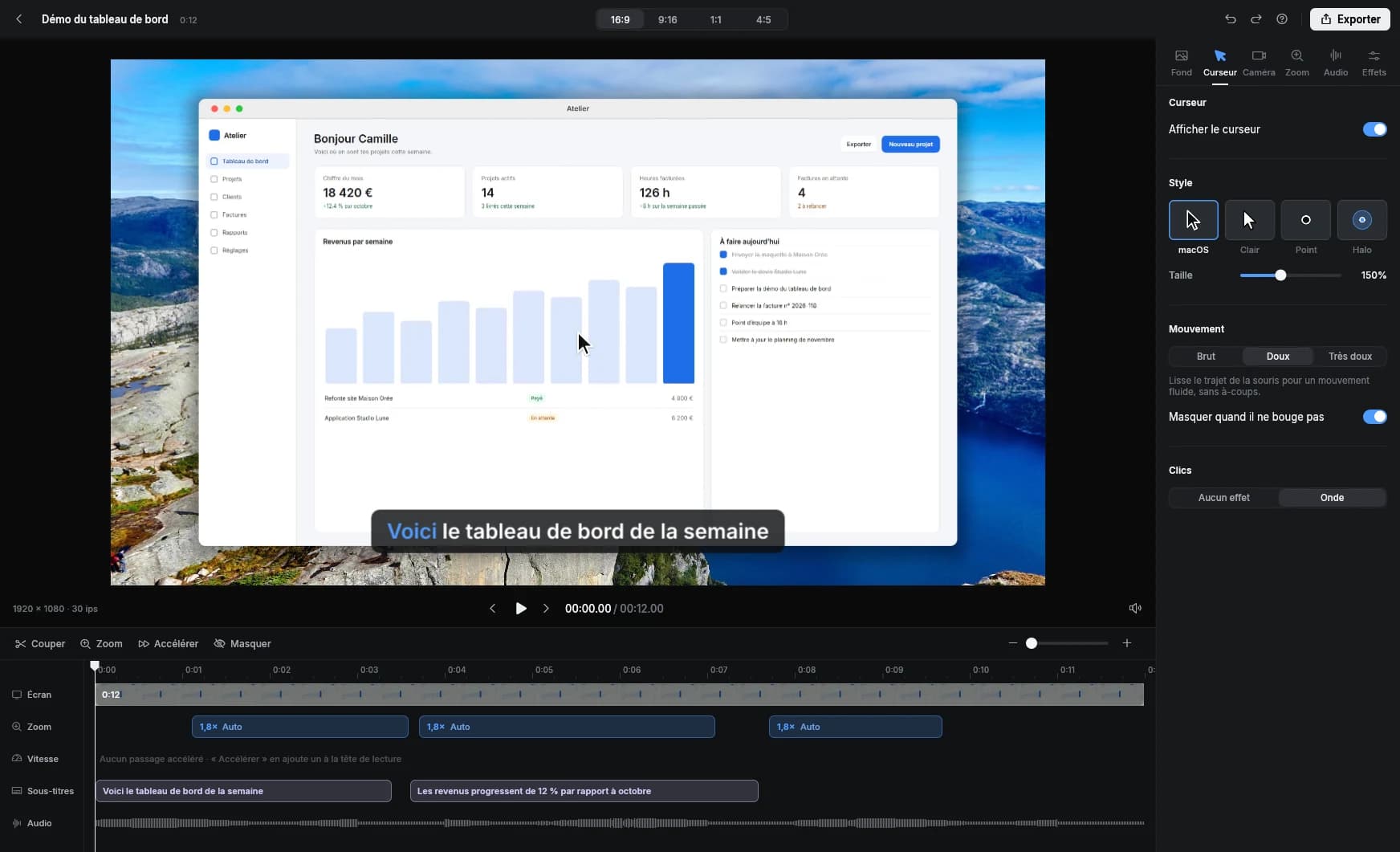
To get a smooth cursor in a screen recording, your recorder has to capture the mouse position separately and redraw the cursor afterward. That's exactly what Clarcut does: you pick the smoothing (Raw, Smooth or Smoother), the cursor's size and style, a ripple effect on clicks, and the cursor hides itself when it stops moving. Everything is adjustable after recording, without a retake, and it's all included in the free version.
Why the cursor ruins so many screen recordings
When you record your screen, your hand moves in bursts: you hunt for a button, overshoot, double back, hesitate before clicking. On video, that turns into a jittery cursor jumping around the screen. Viewers follow the cursor to understand what you're doing, so every twitch costs them attention.
The second problem is size. The default Windows or macOS pointer is tiny. Take a 1440p or 4K screen, shrink it into a video someone watches on their phone, and the cursor practically disappears. And a cursor parked in the middle of a paragraph just gets in the way.
With a basic recorder (Xbox Game Bar, Snipping Tool, Cmd + Shift + 5), the cursor is baked into the video: it's part of the pixels. You can't smooth it, enlarge it or hide it later.
How Clarcut makes the cursor smooth
While you record, Clarcut logs your mouse position, clicks and keystrokes separately. The screen itself is captured without the cursor. In the editor, Clarcut redraws the cursor from that data, so it can smooth out the path, change how it looks or hide it, as if a camera operator were anticipating your every move.
The same data powers the automatic zooms: since Clarcut knows where you clicked, it zooms in on the right spot. Cursor smoothing and zoom smoothing work together to soften fast zooms and quick cursor moves, the way a real camera would.
- The cursor follows a continuous path instead of jumping.
- Clicks stay exactly where and when they happened: smoothing never invents a click.
- You can change your mind later: different style, different size, no re-recording.
Clarcut's cursor settings
| Setting | What it does | When to use it |
|---|---|---|
| Smoothing: raw | Keeps your actual mouse movement, no correction. | Drawing, design or gaming demos, where the exact path matters. |
| Smoothing: smooth | Rounds off small jitters while staying true to your gesture. | Most tutorials and product demos. |
| Smoothing: Smoother | Gives a gliding, very deliberate motion. | Promo videos, landing pages, social media. |
| Style | Changes how the pointer looks (macOS style and others). | Keeping a consistent look across videos, even ones recorded on Windows. |
| Size | Makes the cursor bigger or smaller in the video. | Videos watched on phones or high-resolution screens. |
| Hide when idle | Hides the cursor when it isn't moving. | Moments where you talk without touching the mouse. |
| Ripple click effect | Shows a subtle ripple on every click. | Tutorials: viewers see exactly where you click. |
How to set up your cursor, step by step
- 1
Record as usual
Full screen, a window or an area: Clarcut captures the mouse separately either way. On Windows, Ctrl + Shift + R starts and stops recording.
- 2
Open the Cursor tab in the editor
Settings apply to the whole video, and the preview updates instantly.
- 3
Pick a smoothing level
Start with “Smooth.” Go “Smoother” for promo videos, or “Raw” when the exact gesture matters.
- 4
Adjust size and style
Shrink the preview down to phone size: if you have to look for the cursor, make it bigger.
- 5
Turn on click ripples and hide-when-idle
Ripples make clicks easy to follow; hiding frees up the frame while you explain.
- 6
Save it as a style preset
Along with your background, frame and logo, so every video gets the same look.
Recommended settings by video type
| Video type | Smoothing | Size | Click ripple |
|---|---|---|---|
| Step-by-step software tutorial | Smooth | Slightly larger than default | |
| Product demo for your website | Smoother | Default to large | |
| Vertical video for social | Smoother | Large | |
| Quick reply to a customer | Smooth | Default | Optional |
| Drawing, photo editing, gaming | Raw | Default |
Mistakes to avoid
- Wiggling the mouse while you talk: even smoothed, a cursor going in circles is distracting. Let go of the mouse and Clarcut will hide the cursor.
- Clicking the instant you reach a button: pause for half a second so the zoom and ripple have time to land.
- Leaving a tiny cursor on a 4K screen: check the shrunken preview before you export.
- Using “Smoother” on a fast technical demo: the cursor can feel like it's lagging behind. Switch back to “smooth.”
- Forgetting the cursor is a pointer: hover over what you're talking about instead of waving vaguely in its direction.
Other ways to improve your cursor
Without a dedicated tool, you can at least enlarge the pointer before recording. On Windows 11: Settings › Accessibility › Mouse pointer and touch. On Mac: System Settings › Accessibility › Display › Pointer. That fixes visibility, but not the jitter, and the cursor is still baked into the video.
OBS Studio, Xbox Game Bar and QuickTime record the cursor as is, so there's no way to smooth it afterward. Editors like DaVinci Resolve or Premiere Pro can't fix a cursor that's already part of the image either. A few other recorders work the same way Clarcut does, such as Screen Studio (Mac only) and FocuSee.
Clarcut isn't the right tool if you want to draw arrows or shapes on top of your video: it doesn't do drawn annotations. Camtasia is a better fit for that.
Frequently asked questions
How do I make my cursor smoother in a screen recording?
You need a recorder that captures the mouse separately from the video and redraws the cursor with smoothing. In Clarcut, choose “Smooth” or “Smoother” in the Cursor tab after recording.
Can I make the cursor bigger after recording?
Yes, with Clarcut, because the cursor isn't baked into the video: you change its size and style in the editor. With a standard recorder, you have to enlarge the pointer in your system settings before you record.
Does smoothing shift my clicks?
No. Smoothing softens the path between points, but clicks stay at their real position and time, and automatic zooms land right on them.
Can I hide the cursor completely?
Clarcut hides the cursor whenever it stops moving, which is handy while you talk without using the mouse. It reappears as soon as you move it.
Is the smooth cursor included in the free version?
Yes. Smoothing, styles, size, click ripples and auto-hide are all free. Clarcut Pro ($44 one-time) removes the watermark and adds 4K export, 60 fps and subtitles.
Does it work on both Mac and Windows?
Yes, the same way on Windows 10 and 11 and on Apple silicon Macs running macOS 13 or later. You can even use a macOS-style cursor in a video recorded on Windows.