Use case
Customer onboarding videos that get users to their first win
Updated
In short
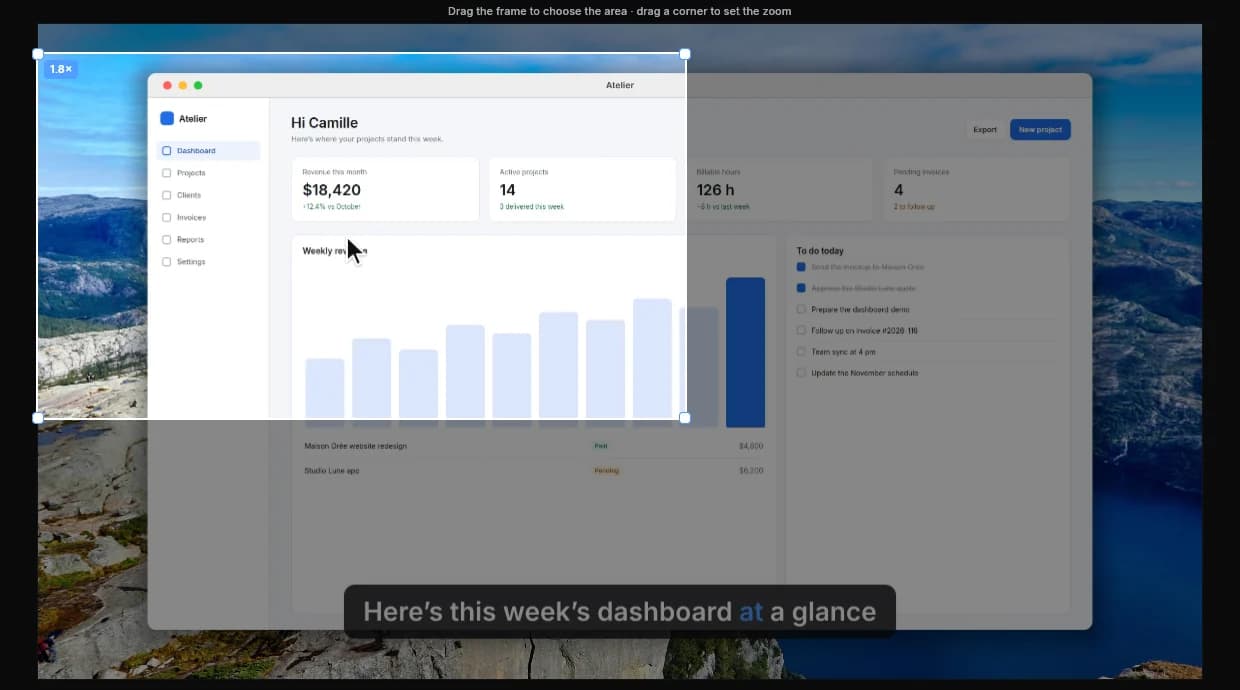
An onboarding video has one job: get a new customer to their first success in your product as fast as possible. Make a short welcome video, then one 1–3 minute video per key step, each placed exactly where the customer needs it (email, empty state, help center). Clarcut records your screen and edits the video for you: zooms on clicks, clean audio and blurred sensitive data.
What makes a good onboarding video
New customers don’t want a tour of every feature. They want to do the thing they signed up for. So the best onboarding videos start from the customer’s goal, not from your navigation menu.
- It leads to one specific action: connect an inbox, import contacts, send the first invoice.
- It’s short, because people watch it while they’re trying to do the task.
- It uses data that looks like the customer’s, not an empty account.
- It speaks the customer’s language (“your quotes”) instead of internal jargon (“the Documents module”).
- It has a face. A webcam bubble makes the welcome feel warmer than a voice alone.
In its State of Video report, built on more than 13 million videos, Wistia found that videos under one minute are watched for 52% of their length on average, and advises getting to the point fast because viewers expect value from the first seconds.
How to structure a getting-started video
- 1
Context in one sentence (5–10 sec)
“In this video, we’ll import your contacts from a spreadsheet. It takes two minutes.”
- 2
The starting point
Show the screen the way the customer sees it when they land, empty state included. They should recognize where they are.
- 3
The clicks, one at a time
One action, one sentence. Pause after each click: that’s where the automatic zoom lands, and it gives the customer time to spot the button.
- 4
The visible result
Stay on the populated screen: “And there are your 120 contacts.” That’s the payoff moment.
- 5
The next step
One suggestion only: “Now, create your first campaign,” with a link to that video.
Plan your onboarding series
| Video | Length | Format | Where to place it |
|---|---|---|---|
| Personal welcome | 30–60 sec | 16:9, camera full frame | Welcome email, first screen |
| First win (core task) | 1–3 min | 16:9 | Empty state, getting-started checklist |
| Setup (integration, import) | 2–4 min | 16:9 | Settings page, help center |
| Advanced feature | 1–3 min | 16:9 | Week-two email, help center |
| Walkthrough for a key account | 3–8 min | 16:9 | Share link with transcript |
| Quick tip | 15–45 sec | GIF or short MP4 | Tooltip, email, release notes |
Recording videos that age well
- Set up a clean demo account with a fictional company name and believable data. Reuse it for every video.
- Record only the browser or app window, not your whole screen, so your tabs and desktop stay out of frame.
- Hide the recorded window’s title bar and swap in a neutral mock window (browser, macOS or Windows). The video looks less dated.
- Don’t say dates, prices or version numbers out loud. They’re what make a video go stale.
- Keep the same voice, background and logo across videos with a saved style preset.
- If you need to type an email address or API key, blur it afterward in the editor instead of stopping the recording.
What Clarcut does automatically
- It zooms in on every click with smooth motion, so customers see exactly which button to use. Follow-cursor mode helps when you drag things around.
- It smooths the cursor and adds a ripple on each click, so the eye follows effortlessly.
- It removes background noise and cuts silences in one click (Gentle keeps a relaxed pace).
- It speeds up the parts where you type, automatically.
- It keeps your camera out of the way: the bubble moves when the cursor passes under it, and you can switch from a full-frame welcome to a small bubble at an exact moment.
- It blurs a sensitive area from a given moment on (email, key, a real customer’s name).
- It exports an MP4 for your help center, or an animated GIF for a tooltip or email.
Mistakes to avoid
- One 15-minute video that tours the whole product.
- Opening with your company history or a long personal intro.
- Recording in an account full of real customer data.
- Showing a path that no longer exists after a UI update.
- Putting every video in the help center, where brand-new customers don’t go yet.
- Forgetting the call to the next step at the end.
Distribution and measurement
Place each video at the moment the question comes up: in the feature’s empty state, in the email sent the day setup is due, at the top of the matching help article. For a key account, a Clarcut Plus share link is handy: the page shows the video with a clickable transcript beside it, and you can send a link that starts at a specific moment. With white label, included in Clarcut Plus, that page runs on your own domain (say, video.yoursite.com) with your logo and colors.
Measure what actually matters: activation rate (the share of new customers who reach that first win) and time to get there, in your product analytics tool. Compare before and after you add a video. Also look at support tickets from the first 30 days: if a question keeps coming up, a video is missing.
Clarcut’s limits for onboarding
Clarcut makes the videos; it doesn’t deliver them inside your product. It doesn’t build interactive product tours, doesn’t integrate with your email tool or help center, and has no team workspace for sharing a video library. The simple workaround: export MP4s and host them wherever your team already manages content (help center, video host, website).
There are no AI voices or avatars, either: it’s your voice and your face. A series in several languages means recording each version. And share links depend on a Clarcut Plus subscription, so for permanent onboarding videos, host them on your own platform.
Frequently asked questions
How long should an onboarding video be?
30 to 60 seconds for the welcome, 1 to 3 minutes for each core task. If a video runs past 4 minutes, it probably covers more than one task, so split it.
How many videos do I need to onboard a customer?
Start with a welcome video and one video per step required to reach the first win, usually 3 to 5. Then add videos wherever support tickets show people getting stuck.
Is a video better than an interactive product tour?
They work well together. An interactive tour guides people inside the product; a video explains the why and shows the result. Videos are also simpler to produce and update. Clarcut makes the video, not the interactive tour.
How do I avoid showing customer data in a video?
Record in a demo account. If something sensitive still shows up, Clarcut can blur that area from the moment you choose, without re-recording.
Can I send a personalized onboarding video to one customer?
Yes. Record a few minutes with your camera on, then create a share link with Clarcut Plus ($9/month or $90/year). The customer sees the video and a clickable transcript, with nothing to install.
Should onboarding videos have captions?
Yes, ideally: plenty of customers watch at work with the sound off. Automatic captions come with Clarcut Pro ($44, one-time) and are generated on your computer.