Use case
Turn your screen recordings into social media videos
Updated
In short
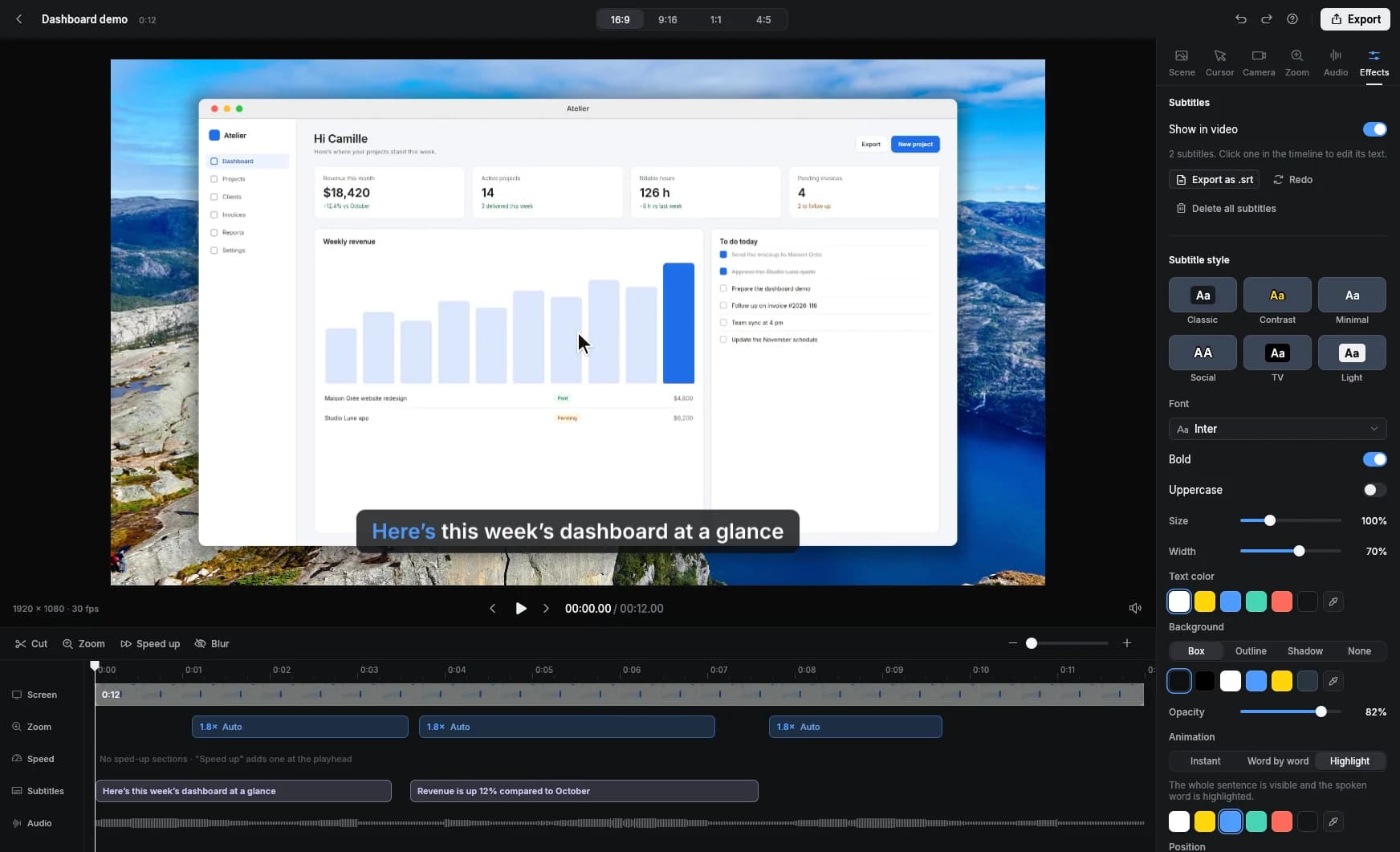
For social media, a screen recording needs to be vertical (9:16, 1080 × 1920), zoomed in on the action, captioned and hooking from the first second. Aim for 15 to 60 seconds for a quick tutorial or tip. Clarcut reframes your recording to 9:16, 1:1 or 4:5 without re-recording, zooms in on your clicks so the interface stays readable on a phone, and adds styled captions with Clarcut Pro.
Why a raw screen recording flops on social
A computer screen is horizontal and packed with tiny elements. Dropped into a vertical feed as-is, it becomes a thin strip across the middle of the phone with unreadable text. To make a screen recording work on social, you need three things: fill the vertical frame, enlarge the area that matters, and make the point clear with the sound off.
- A hook that’s visible in the first second: the result, a promise, a question.
- An interface zoomed in on the action, never the full screen.
- Captions that are readable and kept clear of the app’s buttons and overlays.
- A tight pace: no dead air, no waiting for things to load.
- One idea per video.
Specs for each platform
| Platform | Format | Max length | Suggested length for a tutorial |
|---|---|---|---|
| TikTok | 9:16, 1080 × 1920 | 10 min in-app, 60 min uploaded | 20–60 sec |
| Instagram Reels | 9:16, 1080 × 1920 | 3 min to be recommended to non-followers | 15–60 sec |
| YouTube Shorts | 9:16 or 1:1 | 3 min | 30–60 sec |
| 1:2.4 to 2.4:1 (1:1, 4:5 or 9:16 on mobile) | 10 min | 30–90 sec | |
| X | 16:9, 1:1 or 9:16 | 140 sec (standard accounts) | 30–90 sec |
Max lengths aren’t targets. For a software tip, the video ends when the tip has been shown.
How to structure a tip video
- 1
Hook (0–2 sec)
The result on screen with a line of text: “Remove duplicates in Excel in 3 clicks.”
- 2
Context (2–5 sec)
Why it’s useful, in one sentence. This is a good moment to appear on camera.
- 3
Steps (5–40 sec)
Every click zoomed, every typing stretch sped up. One step per caption line.
- 4
Result (2–3 sec)
The final screen, held long enough to sink in.
- 5
What’s next
One simple ask: save the video, follow the account, watch part 2.
Record with vertical in mind
- Record a window or region, not the whole screen. The less there is to crop, the sharper the result.
- Narrow the window you’re recording. A tall, narrow interface fills a vertical frame better.
- Enlarge the app’s display (browser zoom at 125% or 150%).
- Keep your mouse near the action so zooms stay steady.
- Talk like you’re in a conversation, in short sentences. They make better captions.
- Batch several tips in one session, one per file, and you’ve got a week of posts.
What Clarcut does for social videos
- 9:16, 1:1 or 4:5 in one click: the framing adapts from the same recording.
- Automatic zooms on clicks, plus follow-cursor mode when you move around the interface. Essential in vertical.
- Automatic captions with Clarcut Pro: social, karaoke or classic styles, with adjustable font, colors and position, and editable text. Transcription runs on your computer.
- Silence removal on Strong for a tight edit, plus background noise removal.
- Sped-up typing, so viewers don’t scroll away during data entry.
- Webcam as a bubble or side by side, with a layout switch at an exact moment (you full frame for the hook, then the screen).
- Logo overlay and style presets for a recognizable series.
- MP4 export up to 4K at 60 fps with Pro (1080p at 30 fps on the free plan, with a watermark).
Mistakes to avoid
- Posting a 16:9 video with black bars in a vertical feed.
- Putting captions at the very bottom, where the caption text and app buttons cover them. Move them up into the lower third.
- Opening with “Hey everyone, today we’re going to look at…”.
- Leaving a loading screen in. Cut it or speed it up.
- Using copyrighted music: on YouTube, a Short longer than one minute with an active Content ID claim is blocked worldwide.
- Showing personal data. Blur it before you export.
Posting and measuring
Upload natively to each platform instead of posting a link: autoplay in the feed does the heavy lifting. Write a caption that repeats the hook using words people actually search for (“Excel shortcut,” “Notion tip”). The same vertical video can run on TikTok, Reels and Shorts; for LinkedIn, a square or 4:5 version often fits the feed better.
Check early retention in each platform’s analytics. If people leave in the first seconds, rework the hook, not the rest. Then compare your videos against each other rather than industry averages, and revisit the topics that work from a new angle.
Clarcut’s limits for social
Clarcut is a desktop app: there’s no mobile app, and it doesn’t post or schedule to social networks. You export the MP4 and upload it from your phone or a scheduling tool.
It doesn’t remove your webcam background, it cuts silences but not filler words like “um,” and it has no fancy transitions, stickers or music library (you can drag in your own track). For heavily edited creator-style content, a mobile editor can pick up where Clarcut leaves off; Clarcut handles the screen part.
Frequently asked questions
What format should a screen recording be for TikTok or Reels?
Vertical 9:16 at 1080 × 1920. In Clarcut, choose 9:16 and the framing adapts to your recording, with zooms that follow the action.
How long should a tutorial Reel or Short be?
15 to 60 seconds is plenty for a tip. Shorts can run up to 3 minutes, and Instagram recommends Reels up to 3 minutes to non-followers, but a short tip is more likely to be watched to the end.
How do I add styled captions to a screen recording?
With Clarcut Pro, captions are generated on your computer, word by word. Then you pick a style (social, karaoke, classic), font, colors and position, and fix any words before exporting.
Can I make a square video for LinkedIn?
Yes. Clarcut exports in 1:1 and 4:5, two formats that take up more space in the LinkedIn mobile feed.
Does Clarcut have a mobile app?
No. Clarcut runs on Windows 10 and 11 and on Apple silicon Macs. You export the video, then post it from your phone or your usual tool.
Is the free version’s watermark visible on social?
Yes, free exports (1080p at 30 fps) carry a small watermark. Clarcut Pro ($44, one-time) removes it and adds captions.