Best free screen recorders for Windows and Mac (2026)
Updated · 12 min read
In short
For free recording with no limits at all, OBS Studio is still the best pick on Windows, Mac and Linux, at the cost of a steeper setup. For a quick capture without installing anything, use Snipping Tool on Windows 11 or Cmd+Shift+5 on Mac. For a polished free video with auto zooms, Cap (personal use, no watermark) and Clarcut (1080p with a small watermark) do the editing for you; to send a short video to coworkers, Loom's free plan is enough. Plans checked in November 2026.
Quick picks
| Tool | Platforms | Price | Free tier limits | Auto zoom | Best for |
|---|---|---|---|---|---|
| OBS Studio | Windows 10+, macOS 13+, Linux | Free, open source | None | Recording anything, long sessions, streaming | |
| Snipping Tool | Windows 11 | Built in | No editing, region capture only | A quick capture on Windows 11 | |
| Xbox Game Bar | Windows 10 & 11 | Built in | One app at a time, no desktop or File Explorer | Games and single apps | |
| Cmd+Shift+5 / QuickTime | macOS | Built in | Raw .mov file, no editing | A quick capture on Mac | |
| ShareX | Windows | Free, open source | None | GIFs, screenshots and auto-upload | |
| Loom (Starter) | Mac, Windows, Chrome, mobile | Free, then from $18 per user/month | 25 videos, 5 minutes each, 720p | Video messages to coworkers | |
| Cap | macOS, Windows, Linux | Free for personal use | Personal use, share links capped at 5 minutes | Polished free videos, open source | |
| Clarcut | Windows 10 & 11, Apple silicon Macs | Free, Pro $44 once | 1080p 30 fps, small watermark | Auto-editing on Windows and Mac | |
| Clipchamp | Browser, Windows app | Free, 4K with Microsoft 365 | Export capped at 1080p | Record, then edit on a timeline |
How we compared
We compared these tools in November 2026 using their official websites and help pages, asking the same question each time: what can you do without paying, and where does the tool stop you? We looked at watermarks, maximum length, export resolution, whether commercial use is allowed, audio (mic and system sound), camera, available editing and sharing.
"Free" covers very different things: open-source software with no limits (OBS, ShareX), a tool built into your OS, a starter plan capped by number of videos (Loom), or a free version with a watermark (Clarcut). Clarcut is our app; it's judged on the same criteria as the rest.
OBS Studio: the best free option, no limits
- Strengths: free and open source, on Windows 10+, macOS 13+ and Linux. No time limit, no watermark. Multiple scenes and sources (screen, window, camera, image, text), an audio mixer with filters, live streaming to YouTube or Twitch, plugins and scripts.
- Limits: a streaming-first interface that needs some setup (bitrate, recording format, audio sources). No editing: the video comes out raw, with no zooms or cursor polish.
- Who it's for: long recordings, lectures, gaming, live streaming, or anyone willing to spend an hour configuring their tool.
Snipping Tool (Windows 11) and Xbox Game Bar
- Snipping Tool: built into Windows 11. Open it with Windows + Shift + S and switch to video mode (or Windows + Shift + R on recent versions), draw a region, record. Mic and system audio can be toggled from the recording bar. Nothing to install, but no editing.
- Xbox Game Bar: Windows + Alt + R on Windows 10 and 11. It records one app at a time and won't capture the desktop or File Explorer. Default limit of 2 hours, adjustable up to 4 hours in Settings. Perfect for a game, limiting for a tutorial.
- Who it's for: a capture of a few seconds or minutes, for yourself or a coworker, where looks don't matter.
Mac: Cmd+Shift+5 and QuickTime Player
- Strengths: built into macOS. Cmd+Shift+5 opens the capture toolbar: full screen or a selected portion, mic selection, a timer, and "Show Mouse Clicks" (a circle around the pointer). QuickTime Player also offers File > New Screen Recording.
- Limits: a raw .mov file, no zooms, no background, no camera baked into the video. System audio isn't recorded on every macOS version, so check the options in your capture toolbar.
- Who it's for: showing a bug, a quick fix or a single step to a coworker.
ShareX: the Swiss Army knife for Windows
- Strengths: free, open source, ad-free, in development for more than 18 years. Records the screen to video or straight to GIF, with conversion and trimming tools. Can auto-upload every capture to many destinations (Amazon S3, Google Cloud Storage, custom uploaders and more).
- Limits: Windows only. A dense interface with dozens of settings. No polished editing or auto zoom.
- Who it's for: developers and power users who take lots of screenshots and GIFs every day.
Loom (free Starter plan): for video messages
- Strengths: you record and the link is ready instantly. Comments, reactions and transcripts included. Mac and Windows apps, a Chrome extension and mobile apps.
- Limits as of November 2026: 25 videos total, 5 minutes per screen recording, up to 720p. Upgrading to Business costs $18 per user per month, $24 with AI features. No auto zoom or video styling.
- Who it's for: a team replacing meetings or emails with short videos that can live with the video cap.
Cap: free, open source, with auto zooms
- Strengths: macOS, Windows and Linux. Studio Mode with a full editor (auto zooms, backgrounds, cursor, captions), 4K at 60 fps export, no time limit on local recordings, no watermark mentioned.
- Limits as of November 2026: the free plan is for personal use only; commercial use requires the Desktop License ($29 a year or $58 once). Free share links are capped at 25 a month, 5 minutes each.
- Who it's for: a polished free video for a personal project, or anyone who wants open source.
Clarcut free version: auto-editing, with a watermark
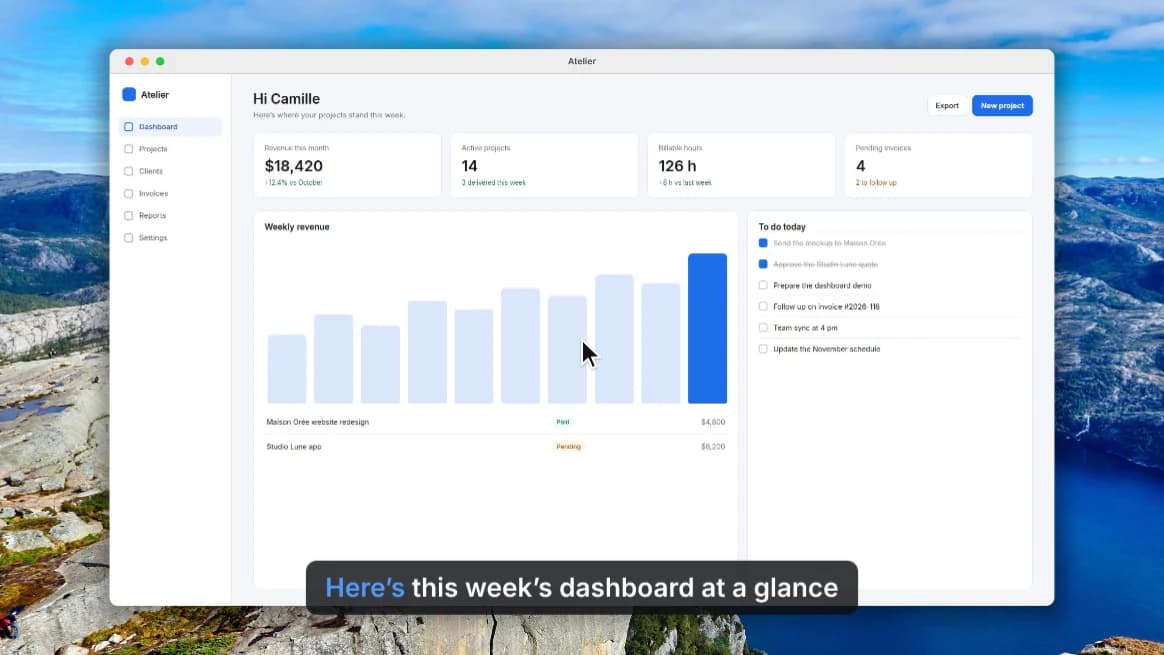
- Strengths: runs on Windows 10 & 11 (no admin rights needed) and Apple silicon Macs. No account, no time limit. All the auto-editing is included: zooms on clicks, smoothed cursor, background and frame, background noise and silence removal, sped-up typing, blurring a sensitive area.
- Limits: 720p or 1080p export at 30 fps with a small watermark. Auto captions, 4K and 60 fps are in Clarcut Pro ($44 once). No Linux, no Intel Macs, and no share links without the Clarcut Plus subscription.
- Who it's for: you want a presentable demo or tutorial without editing it yourself and don't mind a small watermark, or you want to try before you buy.
Clipchamp: record, then edit, no watermark
- Strengths: Microsoft's video editor, in the browser or as a Windows app. Records screen, camera and mic, then lets you edit on a timeline. Free export up to 1080p with no watermark, plus features like auto subtitles and silence removal.
- Limits: 4K and premium assets require a Microsoft 365 subscription. No auto zoom: zooms are manual.
- Who it's for: you want to record and edit in one place for free, and you're fine doing the edits yourself.
How to choose a free screen recorder
- 1
Define what the video is for
A capture for a coworker: your OS's built-in tool is enough. A published video (tutorial, demo, social): you need editing, automatic or manual.
- 2
Check what limits the free version
Watermark (Clarcut), number of videos and length (Loom), personal use only (Cap, Cursorful), resolution (Clipchamp at 1080p): which limit hurts depends on your use.
- 3
Check your audio
Do you need the mic, system sound, or both? Built-in tools don't all handle system audio. Do a 30-second test before the real take.
- 4
Think about commercial use
If the video is for your business or a client, read the terms: some free versions don't allow it.
- 5
Factor in editing time
A free tool that costs you an hour of editing per video is expensive in time. Auto-editing can be worth a watermark or a few dollars.
Mistakes to avoid
- Downloading an unknown "free recorder": many add a giant watermark or bundle unwanted software. Use the official sites of the tools above.
- Discovering the limit after recording: a 12-minute video won't fit in a plan capped at 5 minutes. Read the limits first.
- Recording without testing the mic: clipped or missing audio can't be fixed in editing.
- Leaving notifications or sensitive data on screen: turn off notifications, close private tabs, or blur the area afterward.
- Recording a whole 4K screen for a video watched on a phone: text becomes unreadable. Record a window or a region.
Frequently asked questions
What's the best free screen recorder with no watermark?
OBS Studio: free, open source, no watermark and no time limit, on Windows, Mac and Linux. The built-in tools (Snipping Tool, Xbox Game Bar, Cmd+Shift+5) don't add one either, nor do ShareX, Clipchamp (up to 1080p) and Cap for personal use.
How do I record my screen for free on Windows 11?
Open Snipping Tool with Windows + Shift + S, switch to video mode, draw the region and start recording. For a game or a single app, Windows + Alt + R launches Xbox Game Bar. For a polished video, use a dedicated recorder such as OBS, Cap or Clarcut.
How do I record my screen for free on a Mac?
Press Cmd+Shift+5, choose full screen or a portion, pick your mic under Options, then click Record. The video is saved as a .mov file. QuickTime Player also offers File > New Screen Recording.
Is there a free screen recorder with auto zoom?
Yes: Cap (free for personal use, no watermark), Recordly (free and open source), Cursorful (in Chrome, non-commercial use) and Clarcut (free on Windows and Mac, at 1080p with a small watermark).
Is Loom really free?
The Starter plan is free but capped at 25 videos, 5 minutes per screen recording and 720p (as of November 2026). Beyond that, Business costs $18 per user per month.
Which free recorder is best for long recordings?
OBS Studio has no time limit. Xbox Game Bar stops at 2 hours by default (4 hours max). Cap doesn't advertise a time limit for local recordings. Avoid minute-capped plans such as Loom's free tier (5 minutes per screen recording).
Can I use a free version for work?
It depends on the tool. OBS, ShareX and the built-in tools allow it. Cap and Cursorful limit their free versions to personal or non-commercial use. Always read the terms of the tool you pick.
Why pay for a recorder when OBS is free?
To save time. OBS records very well but doesn't edit anything: zooms, cursor, audio and silences are all manual. A tool like Clarcut does that editing automatically; Clarcut Pro costs $44 once to remove the watermark and unlock 4K.